Alerts, Bookmarks & Following
Found a collector you enjoy, a piece you love, or a search worth keeping? Follow the person, bookmark the specimen, or save an alert — each helps you come back for a different reason.
Last updated
Follow collectors and sellers
Sign in, open a collector's or seller's profile and click Follow. The button changes to Following. Click it again to unfollow; on desktop it shows Unfollow when you hover over it.
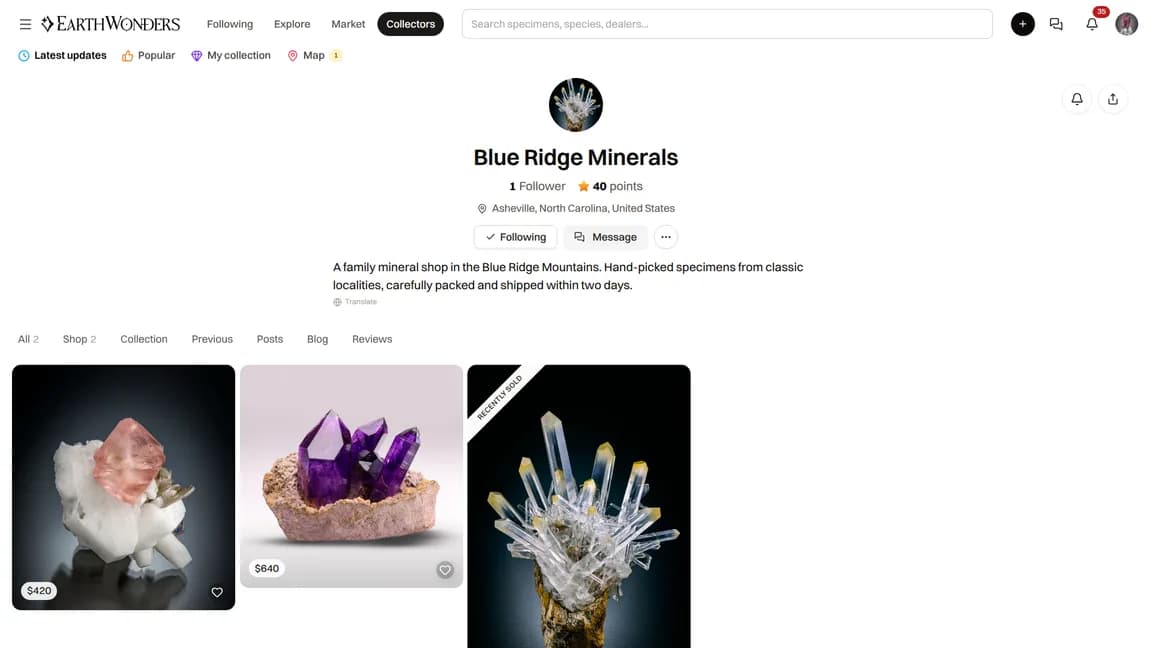
Click the Followers or Following count on a profile to open its lists. You can explore members from there and manage whom you follow. Blocking a member removes follows in both directions; unblocking does not restore them. See the Blocking a Member guide below.
Your Following feed
On the home page, choose the Following tab. It brings together new listings, collection additions, sold specimens, posts and blog articles from the people you follow. If you haven't followed anyone yet, start with a profile you like.
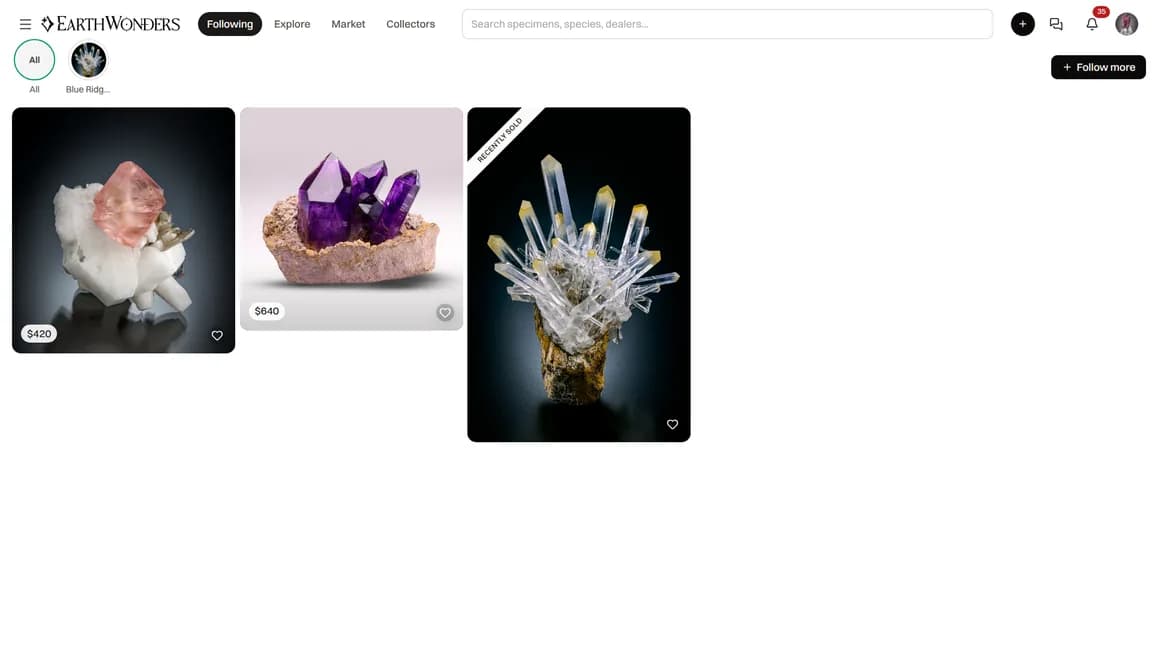
Following is about a person's updates. An alert is about your filters — use one when you want a particular mineral, locality or price range, regardless of who lists it.
Bookmarks
On a specimen page, click the bookmark icon, labelled Add to bookmarks. The filled icon shows it's saved. Open your menu and choose Bookmarks to see your list. Click the icon again, labelled Remove from bookmarks, to remove it.
Saved, not reserved
A bookmark does not hold a specimen for you, contact the seller or create a price alert. If you want to buy it, open the listing and follow the buying steps.
Specimen alerts
- 1
Choose what you want to find
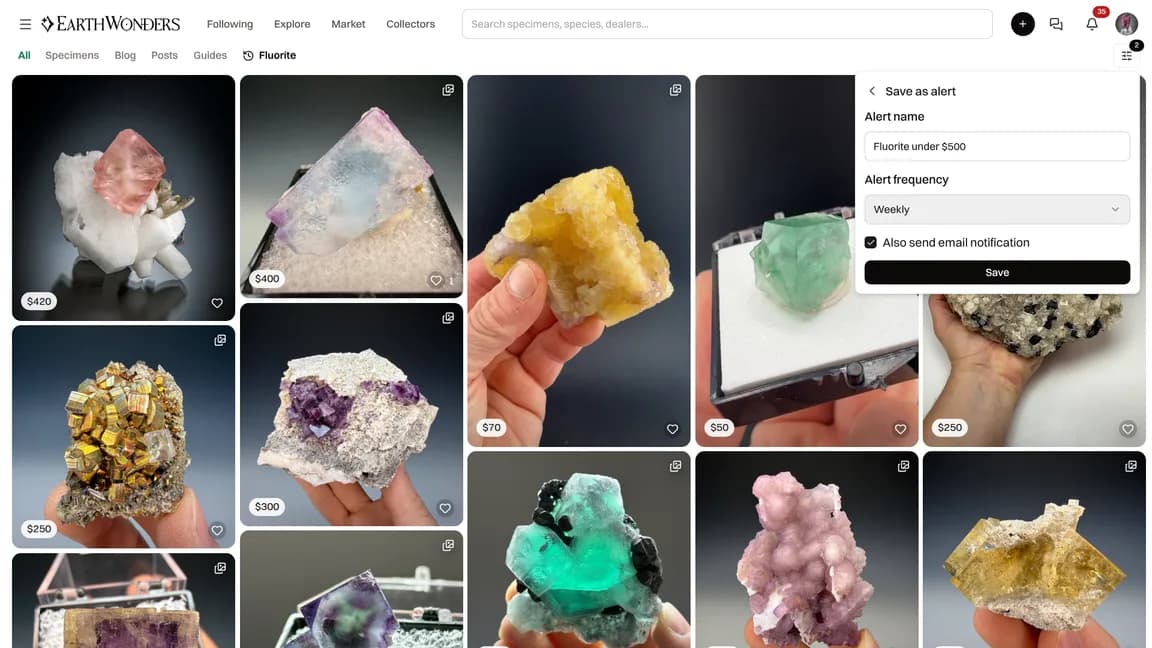
On the market or a search page, set filters such as species, locality, seller or price range, then choose Save as alert. A text search alone is not a saved alert filter. You can also start with Add alert on your Alerts page; in the builder, Save stays disabled until you choose filters.
- 2
Name your alert and choose its frequency
Keep the suggested Alert name or write your own. Under Alert frequency, choose Daily (1 day), Every Few Days (3 days) or Weekly (7 days). Tick Also send email notification if you want email as well, then click Save. The preview shows specimens matching your filters now; the alert watches for new matches and relevant changes after you save.
- 3
Return to your Alerts to change or remove it
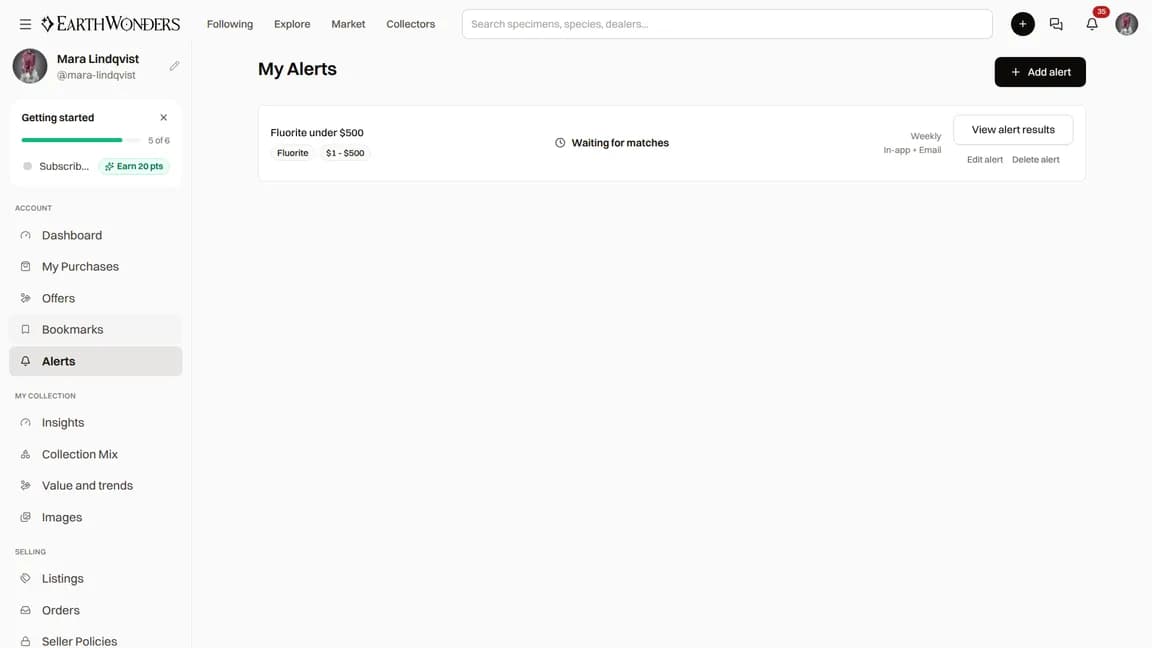
Open Alerts in your menu. View alert results opens the matching search. Edit alert lets you change the filters, name, frequency and email choice; save your changes. To stop the alert altogether, choose Delete alert and confirm.
An alert can pick up a new listing that matches your filters. Price changes count too — drops and increases — while the listing matches your saved filters. Relevant changes to specimen details can also produce a match. Alerts are not limited to the market: you can watch additions to the gallery with the appropriate filters.
Matches appear as in-app notifications, with push notifications on devices where you have enabled them. Email is extra: both the alert's email checkbox and your account's specimen-alert email preference must allow it.
Your Alerts page keeps the saved filters, frequency and last match together, with links to view, edit or delete each alert.
Likes and comments
Click the heart to like a specimen; click it again to remove your like. Open the comments to write a question or share what you enjoy about the piece. You can also reply to an existing comment. Unlike a bookmark, a like or comment is a social interaction, not a private saved item.
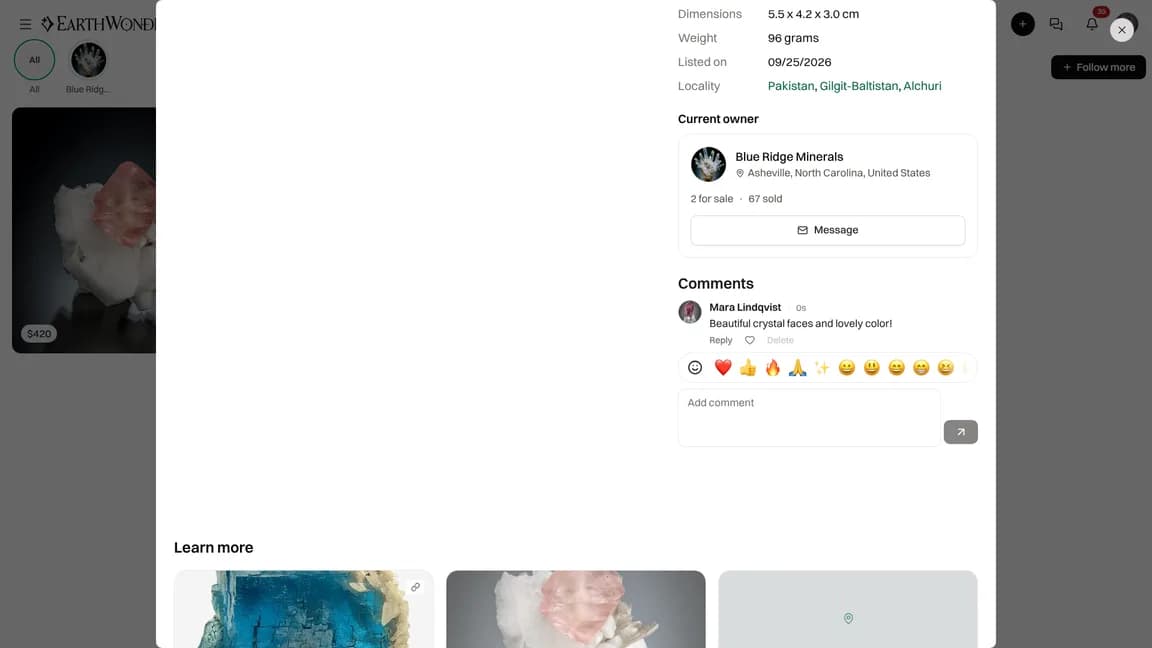
Liking or commenting on another member's specimen earns you 1 point and gives its owner 5 points. Keep your comments useful and kind — a specific observation or a genuine question goes a long way.
Common questions
Does the seller know I bookmarked a specimen?
No bookmark notification is sent to the seller, and your personal bookmarks list is not shared with them. A bookmark is a way to find a specimen again, not a message or a reservation.
How often do alerts arrive?
Choose Daily (1 day), Every Few Days (3 days) or Weekly (7 days). Matches are gathered by a scheduled check, not sent instantly for every change. You only receive an alert when there are matches; you do not get an empty update when nothing matches.
Can I turn off alert emails without deleting the alert?
Yes. Choose Edit alert, untick Also send email notification and save. In-app alerts continue. Your account-wide notification preferences can also switch off specimen-alert emails, even when an individual alert has email enabled.
Can I follow without an account?
No. Sign in to follow a collector or seller and see your Following feed. You also need an account to save bookmarks, create alerts, like specimens or add comments.