Your Account & Notifications
Make your profile feel like you, and choose which updates reach your inbox. Your profile and account settings live in two places — here is what each one does.
Last updated
Signing in
Choose Login or Register from the account menu. EarthWonders uses Auth0 for sign-in, with email and password, Google, and Apple. Use the method connected to your account when you return.
To add another sign-in method to your existing account, use Social accounts in Preferences & Settings rather than creating a separate profile. Follow the sign-in prompts to verify the accounts being linked.
Complete your profile
- 1
Open Edit Profile from your account menu
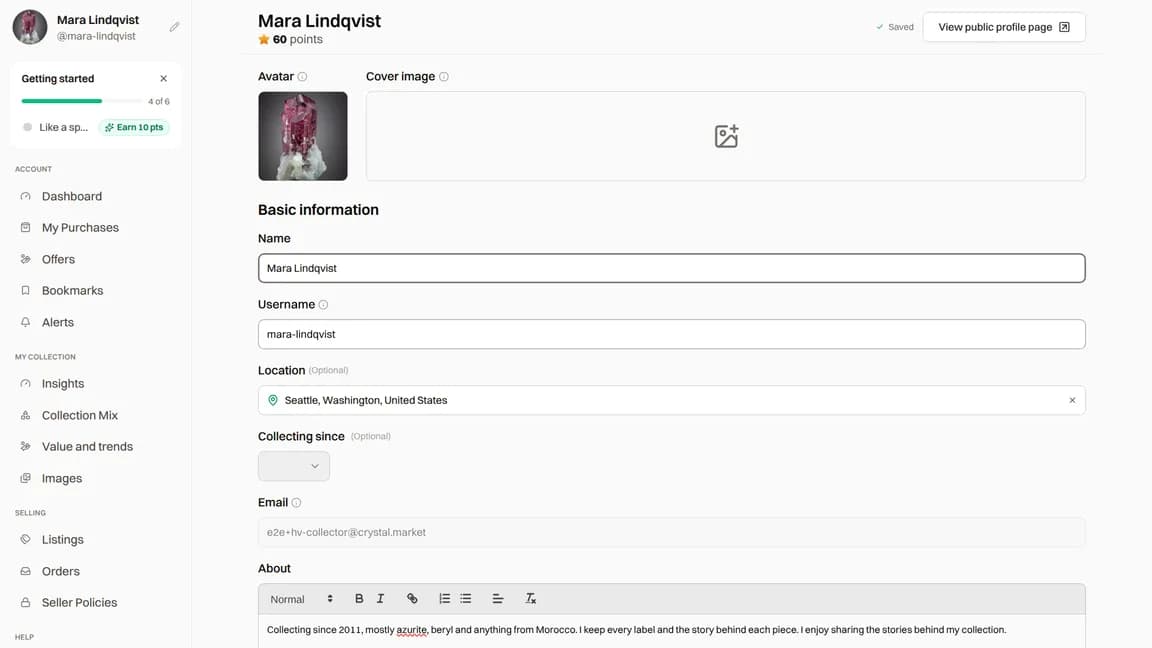
Add an Avatar and Cover image, then fill in your Name, Username, Location, Collecting since, and About. Your email is shown here, but you cannot edit it in this form.
- 2
Choose an available username
Wait for Username available. Use 3–30 Latin letters, numbers, hyphens, or underscores, with no hyphen or underscore at either end. Numbers-only names, a single repeated character, reserved names, and names that look like record IDs are not allowed. The form tells you when a name is taken or invalid.
- 3
Add links and wait for Saved
You can add Instagram, YouTube, X (Twitter), Facebook, and a website. These are public profile links, not sign-in accounts. Valid changes save automatically; wait for Saved before leaving. Use View public profile page to check the result.
Notifications and emails
Open Preferences & Settings from the menu. Under Email notifications, tick the updates you want and untick those you do not. These web settings control email, not push notifications or the notification list on the website. Changes save automatically.
Direct messages
Likes of your specimens
Offers on specimens
Comments on your specimens
EarthWonders announcements
Missed chats/messages
New specimens/listings from people you follow
New blog posts from people you follow
Specimen alerts
Missed chats/messages has a separate schedule: Hourly, Daily, or Weekly. Enable it before choosing the frequency. For specimen alerts, also check the email choice on the individual alert.
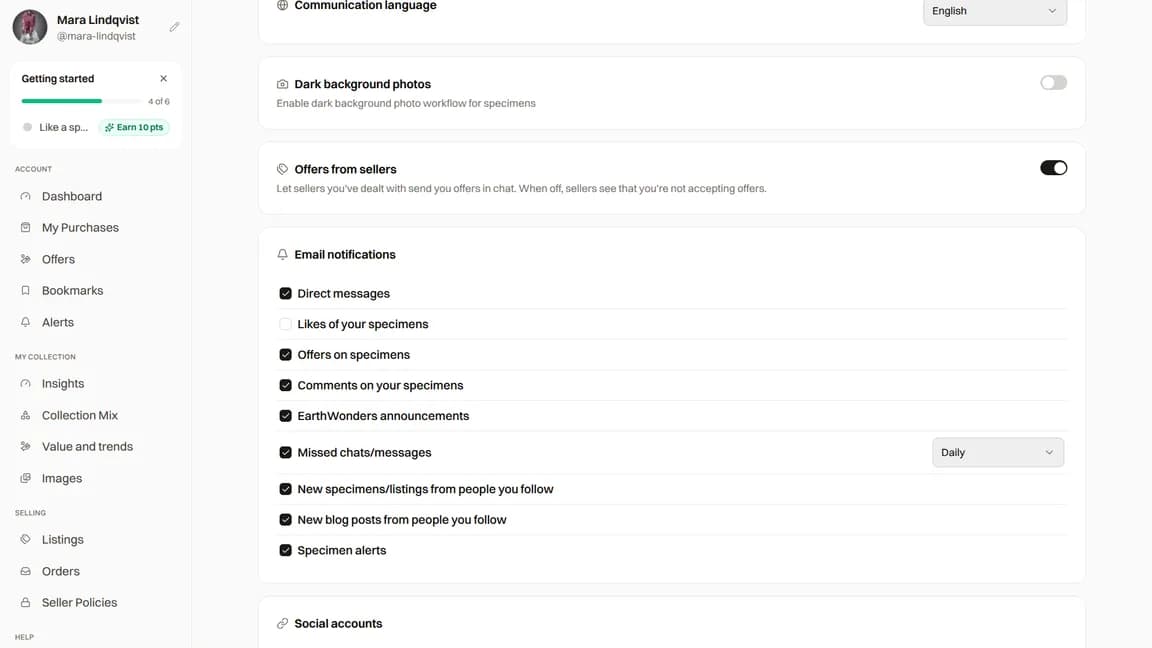
Communication language chooses the language for communications. To change the website language, use Language in the menu. Emails that include an unsubscribe link let you turn off the categories covered by that link without deleting your account.
Password and linked accounts
In Preferences & Settings, choose Reset password under Password. Auth0 sends a reset request to your account email for email-and-password sign-in. The button changes to Check your email when the request is accepted. A Google or Apple password is managed with that provider, not on EarthWonders.
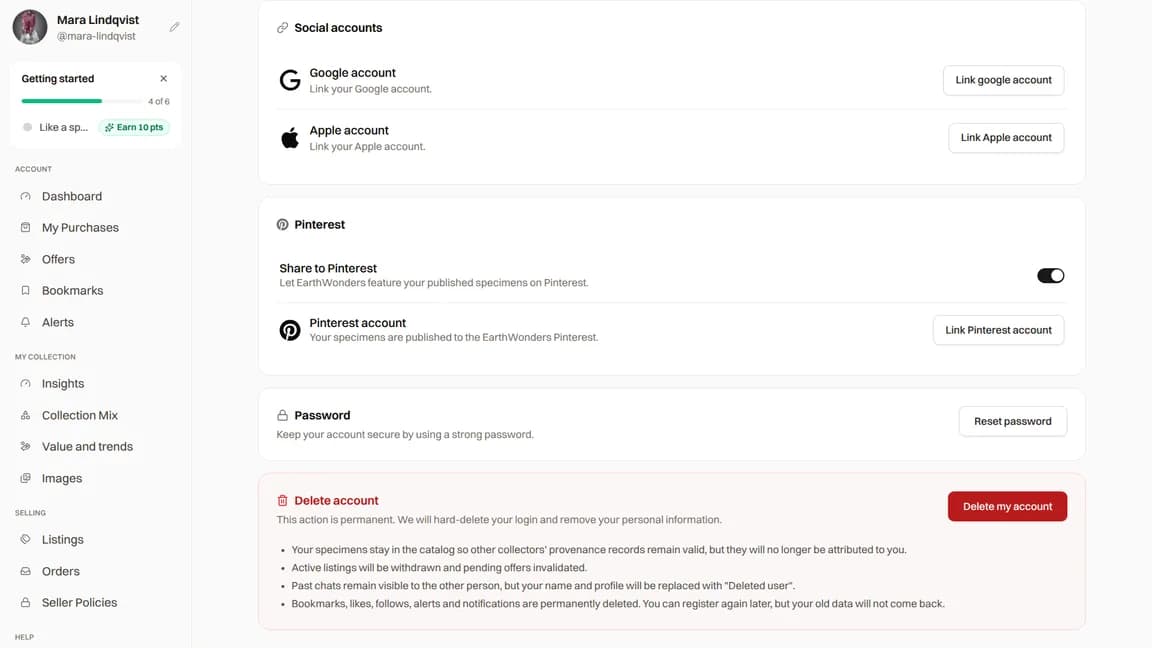
Under Social accounts, use Link google account or Link Apple account and complete the sign-in prompts. An added account can be disconnected with Unlink google account or Unlink Apple account, followed by confirmation. Your original sign-in account cannot be unlinked and is not shown as a removable link. These links are separate from the social-media URLs on your public profile.
Deleting your account
In Preferences & Settings, choose Delete my account. Read the warning, type DELETE exactly, then confirm with Delete my account. You are signed out after deletion. There is no undo button.
Your account and profile are deactivated and anonymized. Your username, bio, location, profile images, and public social links are removed from the profile, and your sign-in account is deleted.
Bookmarks, likes, follows in both directions, specimen alerts, notification preferences, notifications, push registrations, and image albums are removed from your active account.
Published and reserved listings are removed from sale. Pending offers you sent are invalidated. Account deletion does not cancel existing orders.
Specimen records, conversations, and order records are kept. Historical records and an internal recovery archive also remain; deleting your account is not a complete erasure of all stored data.
Only want fewer emails?
Change Email notifications instead. Before deleting, finish any open purchases, sales, and payouts, and save information you need.
Common questions
Can I change my username?
Yes. Open Edit Profile, choose an available username that meets the rules, and wait for Saved. Your public profile address uses your username, so check it with View public profile page after changing it.
I did not receive the password reset email. What should I do?
Check the inbox and spam folder for the email address shown in Edit Profile. The reset request is for an email-and-password account. If you normally sign in with Google or Apple, use that provider and manage its password there. Check your email confirms that the request was accepted, not that the message reached your inbox.
What happens to my sales and orders if I delete my account?
Published and reserved listings are removed, and pending offers you sent are invalidated. Existing orders and their records are kept; deletion does not cancel them. Finish open purchases, sales, and payouts before deleting your account.
How can I stop emails without deleting my account?
Open Preferences & Settings and untick the categories under Email notifications. Changes save automatically. Where an email includes an unsubscribe link, you can also use it to turn off the email categories named by that link. These controls change email delivery, not your account or your website notification feed.
Can I undo account deletion?
There is no restore button, and your sign-in account is deleted. Some historical data and an internal recovery archive are retained, but that does not give you a self-service way to reactivate your account. Treat deletion as a lasting decision.