Collection Insights, Points & Images
Get to know your collection beyond the individual pieces: see its audience, its mix and the prices you have recorded. Then check your points and give your photos a home.
Last updated
Audience
- 1
Open Insights from your menu
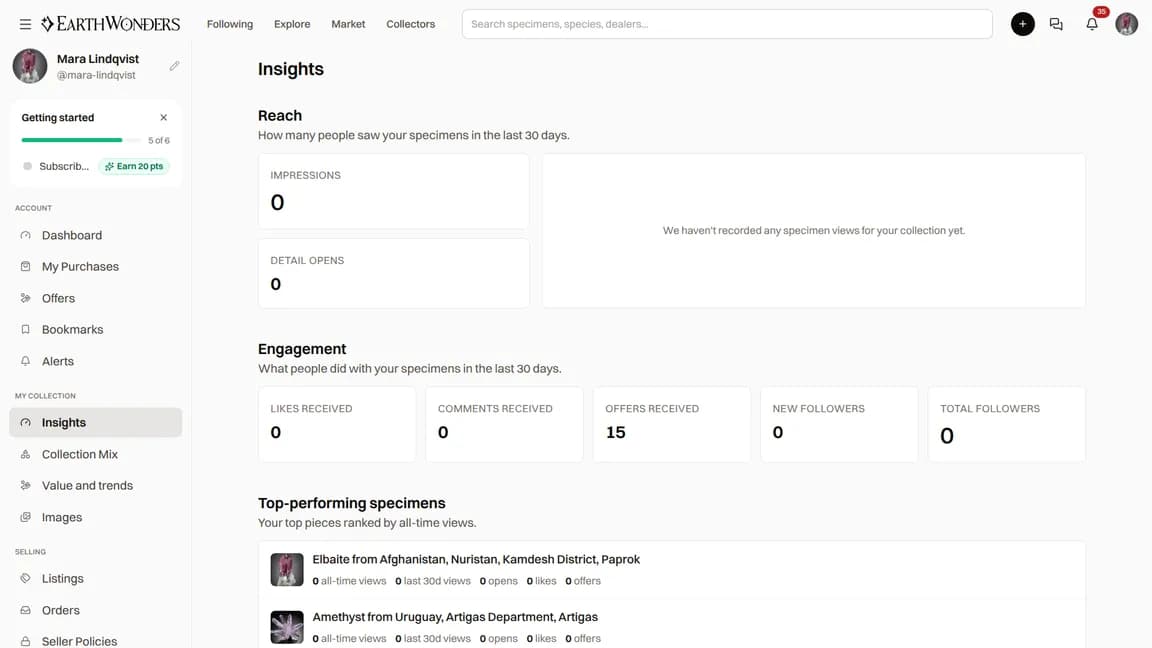
Sign in and choose Insights. The audience page shows impressions (times your specimens were shown) and detail opens over the last 30 days, with a chart to help you spot changes.
You can also see likes, comments and offers received, new followers, your total followers, and a list of your top-performing specimens. These are counts, not a list of everyone who viewed your collection.
Your insights pages are private to your signed-in account. Other members cannot open your audience, collection mix or value dashboard from your public profile.
Collection mix
- 2
Choose Collection Mix
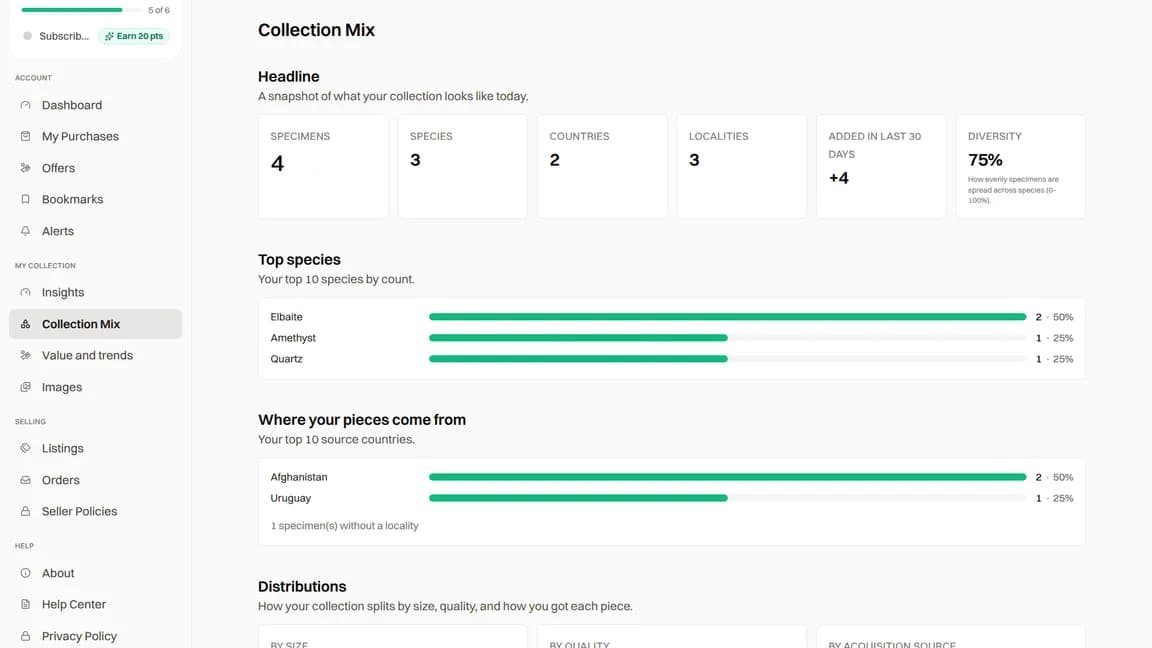
Collection Mix summarizes your published specimens: counts of specimens, species, countries and localities, recent additions and species diversity. Drafts are not included.
Explore the species and country breakdowns, size and quality distributions, acquisition sources and acquisition timeline. Seller and offline-source lists show where your specimens came from. Recorded acquisition prices also provide average and median prices and show how much of your collection has a price recorded.
Missing details appear as unknown or unrecorded. Add species, locality, dimensions and acquisition information to your specimen records to make the picture more useful.
Value and trends
- 3
Choose Value and trends
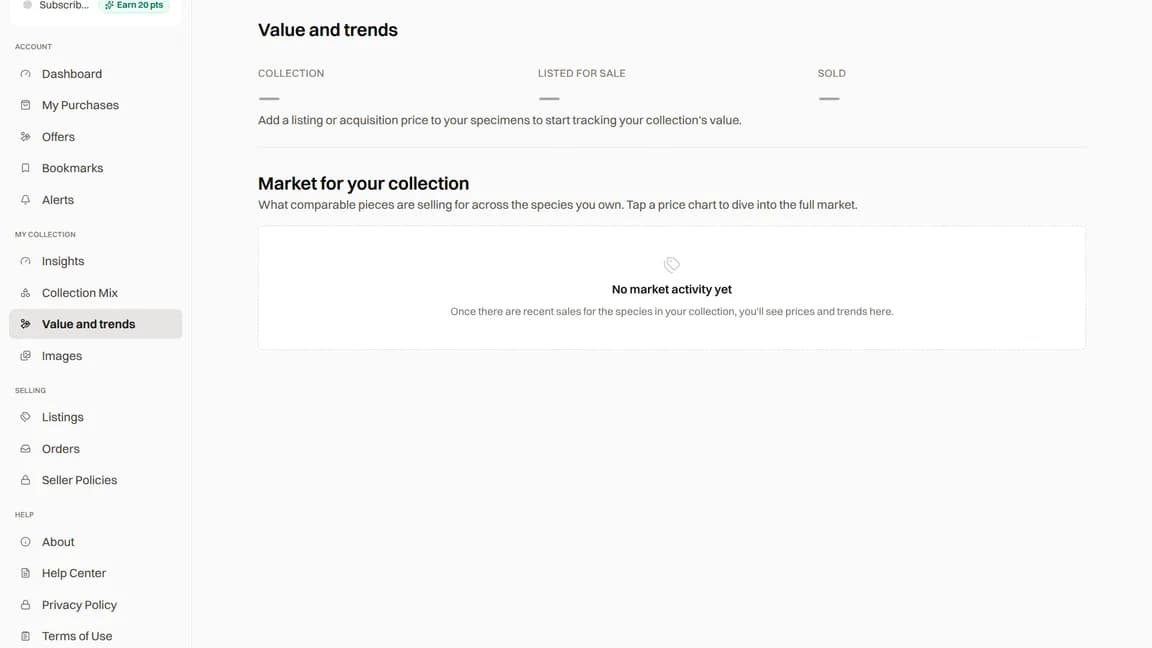
The totals and timeline separate collection, listed and sold values, shown in US dollars. Collection value uses a published listing price when available, otherwise the specimen's recorded acquisition price. It is a view of your records, not an independent appraisal.
Below the chart, market cards for species in your collection show median sale prices, sales over the last 12 months, the latest sale and recent sold examples when data is available. Open a card to explore that species' market data. The separate market-insights address takes you to this same Value and trends page.
A missing value does not mean a specimen is worthless. Without a usable listing or acquisition price, it cannot contribute to the recorded collection total. A species may also have no sales data to show.
How you earn points
- 4
Open Points & Activity
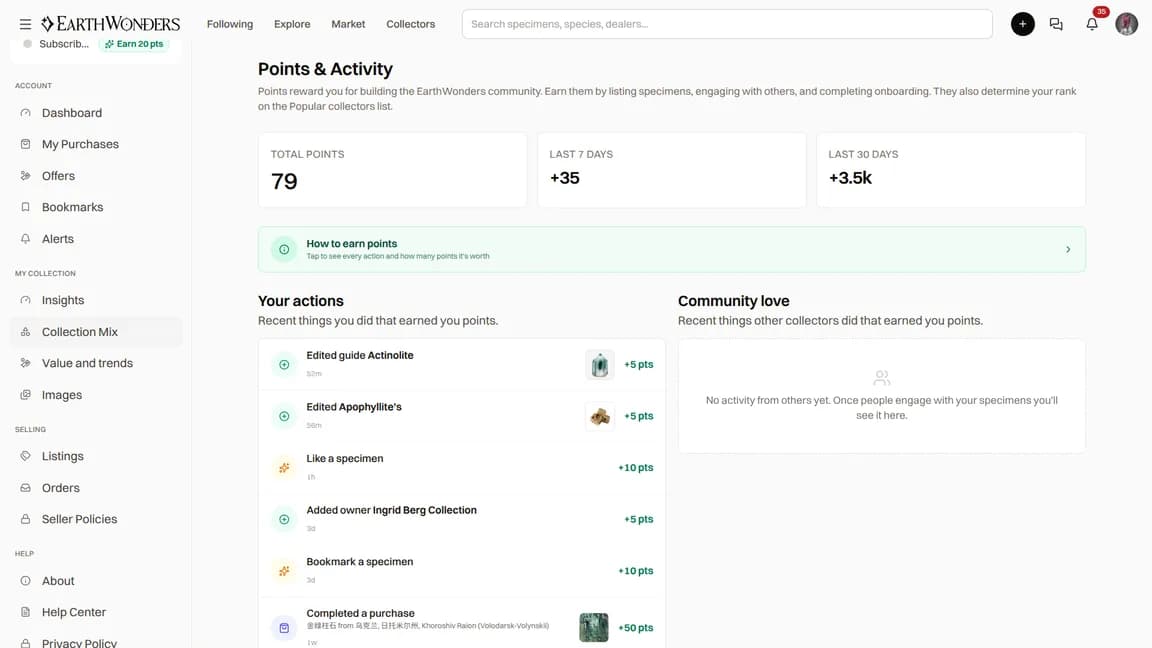
Points & Activity shows your total, recent points, and separate activity lists for your actions and other collectors' actions that earned you points. Open How to earn points for the full action list.
Points recognize participation. Your total appears on your profile and collector cards; it is not a private balance. Administrators can add or subtract points with a reason, and these adjustments appear in your activity.
Like a specimen: 1 point for you; 5 for its owner.
Comment on a specimen: 1 point for you; 5 for its owner.
Make a recorded contribution: 5 points for you.
Leave a review on a completed order: 5 points for the reviewer.
Complete a sale: 50 points for the buyer and 50 for the seller when delivery is confirmed.
Your images library
- 5
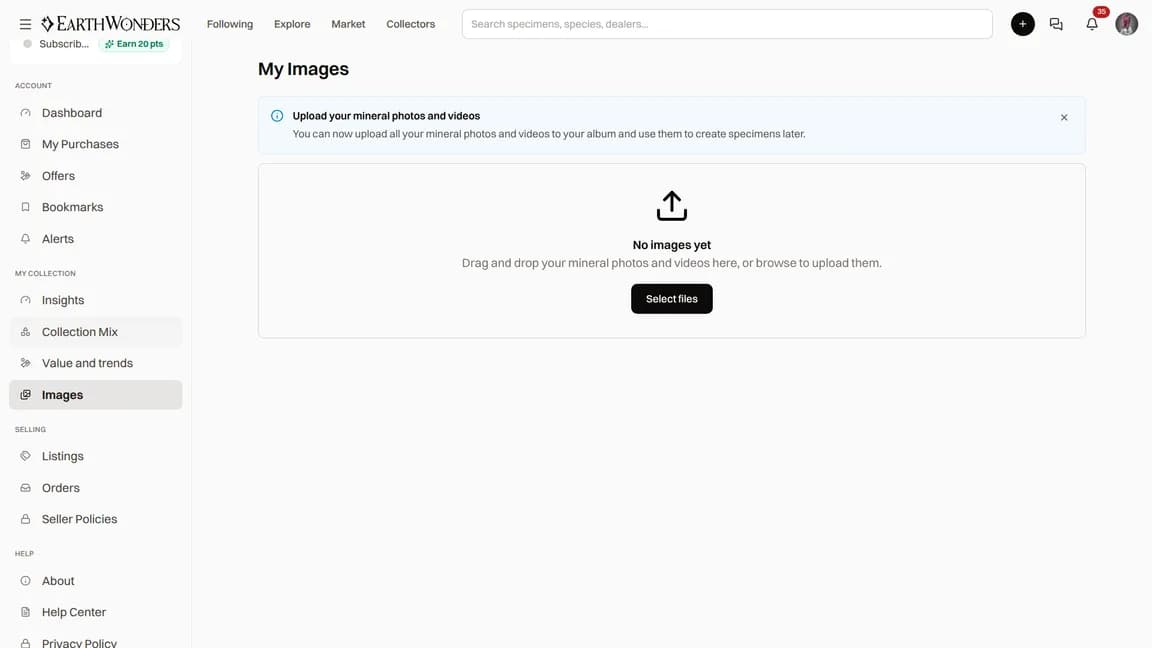
Choose Images from your menu
My Images is your personal library of photos and videos saved to your album. Browse it newest or oldest first. Use Add photos to select files or drag and drop them, then let uploading and processing finish.
Select finished media and choose Add to Collection to create a specimen draft with those files. You can then complete the specimen's details. To use the same photo in a post, upload the original file through the post's photo button; the post editor does not have a My Images picker.
You can also select media and delete it after confirming. This removes it from your images library, not from a specimen that already uses it. To remove a specimen photo, edit that specimen's media separately.
Common questions
Who can see my insights?
Your personal insights are only available to you when signed in. Your public profile still shows your points total, and the site's general species market data is public.
Why is my collection value missing or lower than expected?
The total uses published specimens with a usable published listing price or recorded acquisition price. Unpriced specimens and drafts do not add to it. It is not a live valuation of every piece you own.
Do points expire, and can I spend them?
There is no scheduled points expiry or way to spend points in the current system. They recognize participation, rather than acting as money or shopping credit. A total can still change when an action is reversed or an administrator makes an adjustment.
Do points unlock levels or badges?
There is no points-based level or badge ladder. Your points total is shown as a number on your profile and collector cards.
Will deleting an image here remove it from my specimen?
No. Deleting from My Images removes the album entry. A specimen that already uses the image keeps it; edit that specimen if you want to remove its photo too.