Components in blog articles & guides
Text and photographs carry most stories. When an article would benefit from a live piece of EarthWonders — a specimen card, a row of search results, a locality map, a gallery of collectors — the editor can place one between your paragraphs, and it keeps itself up to date. The same Components menu is available when you edit a guide.
Last updated
Adding a component
In the editor toolbar, choose Components. The list is grouped by what each component shows; pick one and it appears where your cursor was, already filled with example settings, with a preview of how readers will see it.
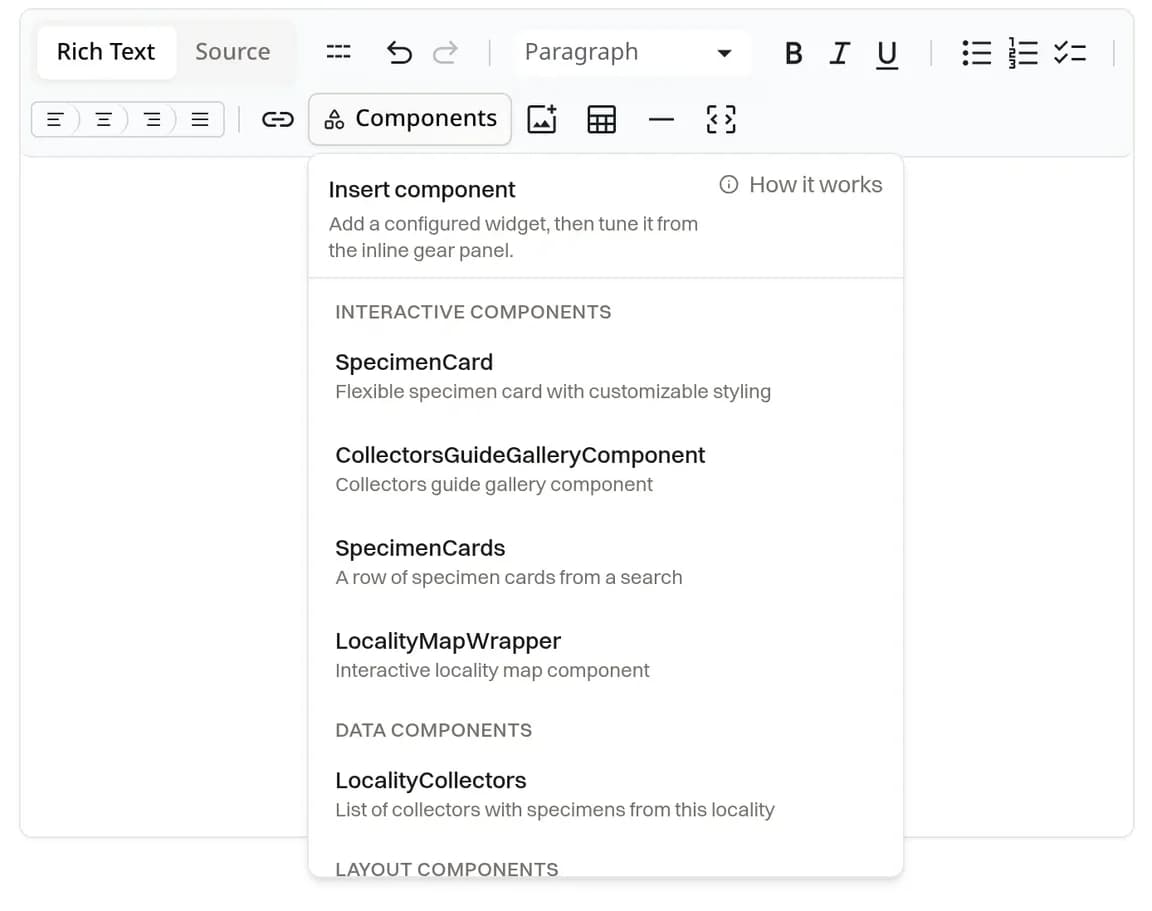
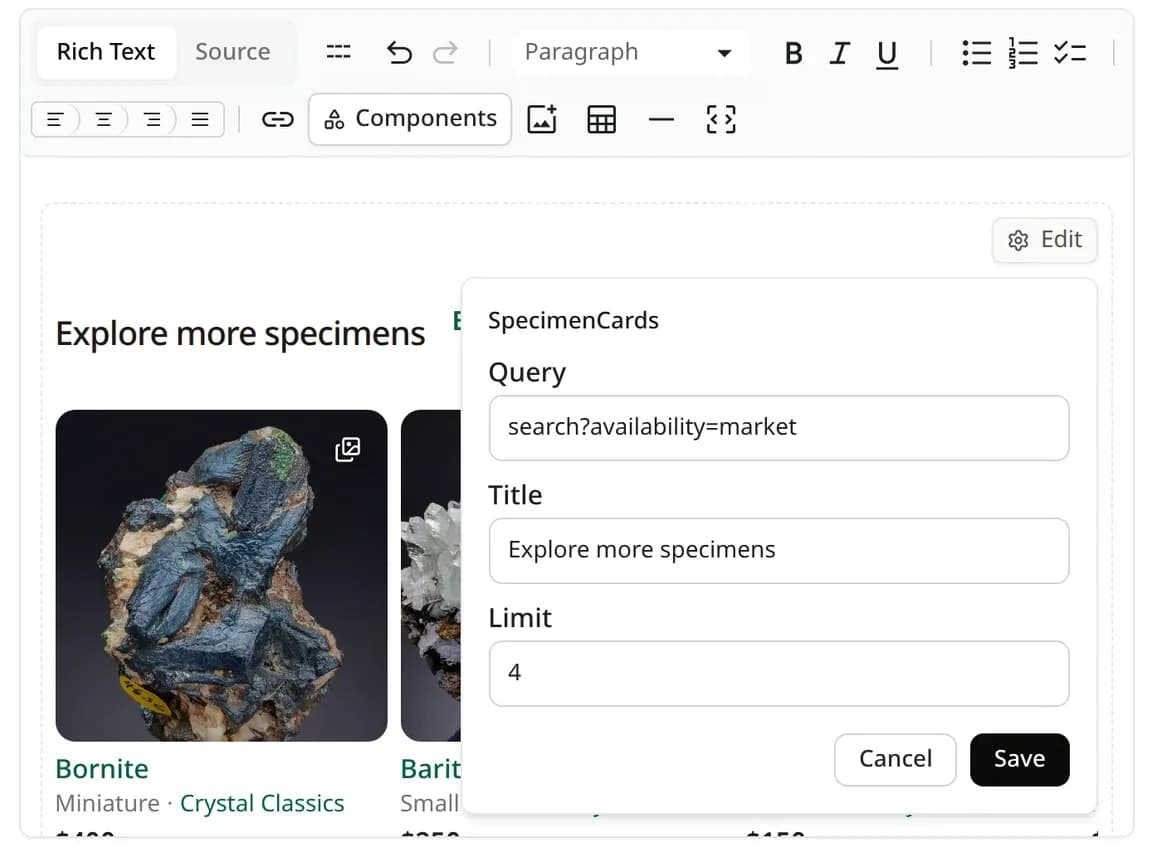
Each component has an Edit button in its top-right corner. It opens a small panel with the component's settings — a specimen to show, a locality to map, how many cards to display. Choose Save to apply them; the preview refreshes once saved. Cancel leaves the component as it was.
Components are blocks, like a heading or an image: they sit between paragraphs rather than inside them. If you are comfortable with markup, the Source view in the toolbar shows the article as text, where each component is a tag you can edit or remove directly. The sections below show each component's settings, the tag as it appears in Source view, and the result readers see.
Which component to use
SpecimenCard — one specimen
Shows a single specimen as a card with its photograph, name, and owner; readers open the specimen page from it. The preview tells you if the specimen cannot be found, for example when it is private.
| In the Edit panel | In Source view | What it does | Example |
|---|---|---|---|
| Specimen | specimenId | The specimen's number — the last part of its page address, earthwonders.com/specimens/118076. | 118076 |
| — | className | Optional width and alignment of the card; only editable in Source view. Inserted as a centred, medium-width card. | mx-auto max-w-xs |
In Source view
<SpecimenCard specimenId={118076} className="mx-auto max-w-xs" />What readers see
SpecimenCards — a row from a search
A scrolling row of specimen cards taken from a search on EarthWonders, with an Explore all link to the full results. Build the search first: open Explore, set the filters you want, and copy the address from the browser into Query. The row is live — as specimens matching the search are added or sold, the cards change with them. An address that is not a search on EarthWonders shows a notice in the editor and nothing to readers.
| In the Edit panel | In Source view | What it does | Example |
|---|---|---|---|
| Query | query | A search address copied from Explore. The full address with earthwonders.com works too. The example shows one collector's specimens; species=13 or availability=market narrow it further. | search?owners=15 |
| Title | title | The heading above the row. | From Will Jessup's collection |
| Limit | limit | How many cards to show, 1–60. Four if left empty. | 6 |
In Source view
<SpecimenCards
  query="search?owners=15"
  title="From Will Jessup's collection"
  limit={6}
/>
What readers see
From Will Jessup's collection
Explore allCollectorsGuideGalleryComponent — a photo grid
A grid of specimen photographs for a species, a locality, or both, with a button to view all matching specimens. Readers open a specimen by clicking its photograph.
| In the Edit panel | In Source view | What it does | Example |
|---|---|---|---|
| Species, Locality | query | The Species and Locality pickers write into the query. Advanced query lets you type the same filters a search address uses. | ?context=all&species=13&locality=296590 |
| Title | title | The heading above the grid, shown with the header. | Fluorite from Yaogangxian |
| Num Rows | numRows | Rows of photographs, 1–4. | 2 |
| Num Columns | numColumns | Photographs per row, 1–6. Phones show two per row whatever you choose. | 4 |
| Show Header | showHeader | Shows the title and the View specimens button above the grid. | true |
In Source view
<CollectorsGuideGalleryComponent
  query="?context=all&species=13&locality=296590"
  title="Fluorite from Yaogangxian"
  numRows={2}
  numColumns={4}
  showHeader={true}
/>
What readers see
Fluorite from Yaogangxian
LocalityMapWrapper — a locality map
A small map centred on a locality. Leave Interactive off when the map is only an illustration, so scrolling past it does not catch the reader's wheel.
| In the Edit panel | In Source view | What it does | Example |
|---|---|---|---|
| Locality | localityId | The locality to centre on, chosen from the picker. | 296590 |
| Zoom | zoom | How close the map starts. 3 shows the country, 6 the region, 10 the town. Three if left empty. | 6 |
| Interactive | interactive | Lets readers pan and zoom the map themselves. | false |
In Source view
<LocalityMapWrapper localityId={296590} zoom={6} interactive={false} />What readers see
Loading locality...
LocalityCollectors — who collects from here
Cards for collectors who have specimens of a chosen species from a chosen locality, each with their name, how many they have, and a preview of their pieces. If no collector matches, nothing is shown — so check the preview before publishing.
| In the Edit panel | In Source view | What it does | Example |
|---|---|---|---|
| Locality | localityId | The locality, chosen from the picker. | 296590 |
| Species | speciesId | The species, chosen from the picker. | 13 |
| Title | title | The heading above the cards. | Collectors of Yaogangxian fluorite |
| Limit | limit | The most collectors to show. | 6 |
In Source view
<LocalityCollectors
  localityId={296590}
  speciesId={13}
  title="Collectors of Yaogangxian fluorite"
  limit={6}
/>
What readers see
Faq — questions and answers
A question-and-answer section, usually at the end of an article. Insert Faq, click inside its box, then insert a FaqItem for each question. The item's gear icon sets the question, which becomes a heading; whatever you write inside the item is the answer. Search engines can show these questions directly in their results.
| In the Edit panel | In Source view | What it does | Example |
|---|---|---|---|
| Question | question | The question on each FaqItem, shown as a heading. | Can I use components in a post? |
In Source view
<Faq>
  <FaqItem question="Can I use components in a post?">
    No. Posts are short updates; components are for blog articles and guides.
  </FaqItem>
  <FaqItem question="Do components update after I publish?">
    Yes. They show live data each time the article is read.
  </FaqItem>
</Faq>
What readers see
Can I use components in a post?
No. Posts are short updates; components are for blog articles and guides.
Do components update after I publish?
Yes. They show live data each time the article is read.
Before you publish
Do
- Check each preview after saving its settings.
- Give rows and galleries a title that tells readers what they are looking at.
- Keep a search row focused — a few well-chosen filters read better than a long list.
Don't
- Paste a search address from another website.
- Rely on a component you have not previewed — a missing specimen or an empty search shows readers nothing or a notice.
- Stack several galleries in a row; one between sections is easier to read.